
Introduction
Before you start, be aware this won’t be a write-up like my previous posts, and most people probably won’t find it that interesting. It’s just a guide to unlocking the bootloader of the Motorola Moto G05 and G15, for anyone who wants to root their phone or install LineageOS.
Requirements
You’ll need a Windows or Linux PC and the tanuki ZIP for lamu, which is cross-platform. Beyond that, the only thing that differs between the two is the drivers:
- Windows: install the MediaTek drivers.
- Linux: no drivers, but add a udev rule so the device is accessible without root (otherwise run the script with
sudo).
On Linux, drop the same udev rule mtkclient uses into /etc/udev/rules.d/52-mtk.rules:
SUBSYSTEM=="usb", ATTR{idVendor}=="0e8d", MODE="0666", TAG+="uaccess"Then reload udev and replug the phone:
sudo udevadm control --reload-rules && sudo udevadm triggerUnlocking the bootloader
The process is identical on Windows and Linux — only the driver setup and the command differ, which I’ll flag as we go. The screenshots are from Windows but look the same on Linux.
On Windows, install the MediaTek USB drivers and reboot. If Windows complains about the driver signature, you’ll need to turn off core isolation — look that up, I won’t cover it here.
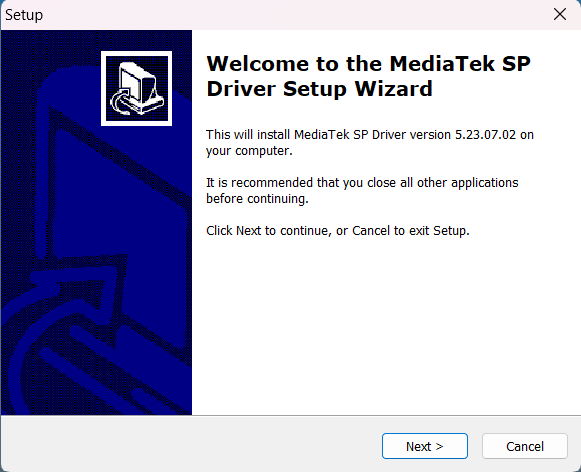
On Linux, no drivers are needed — just make sure the udev rule from the requirements is in place.
Extract the tanuki ZIP and open a terminal inside the folder (on Windows, right-click and select Open in Terminal), then run the script:
.\tanuki.batsudo ./tanuki.shThe script will ask you to connect the device powered off, and wait for it.
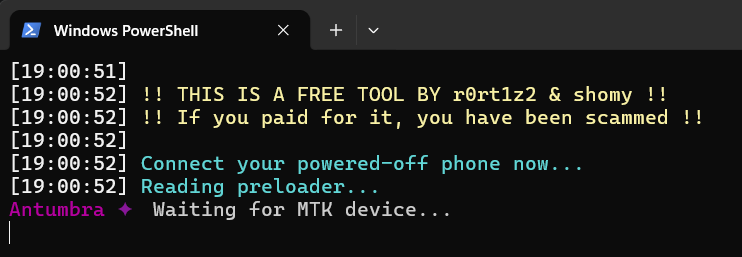
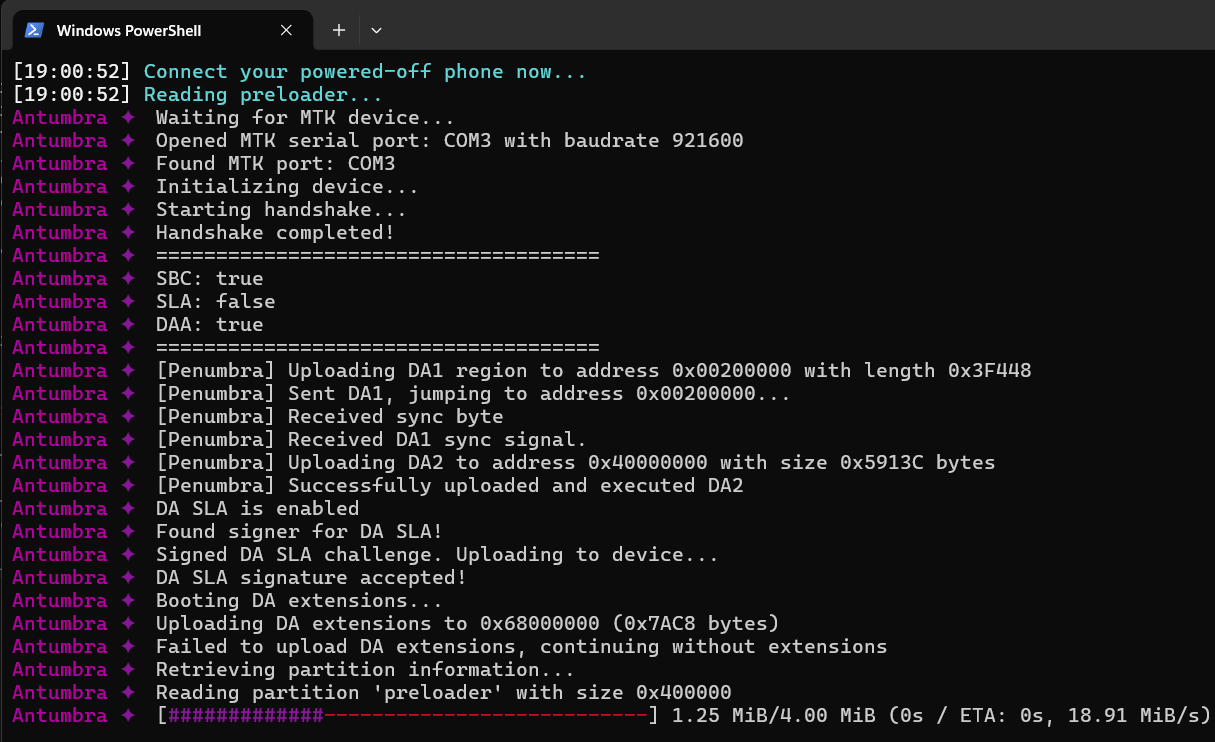
Turn the phone off if you haven’t already and connect it. If the drivers are installed correctly, the script recognizes it and starts flashing.
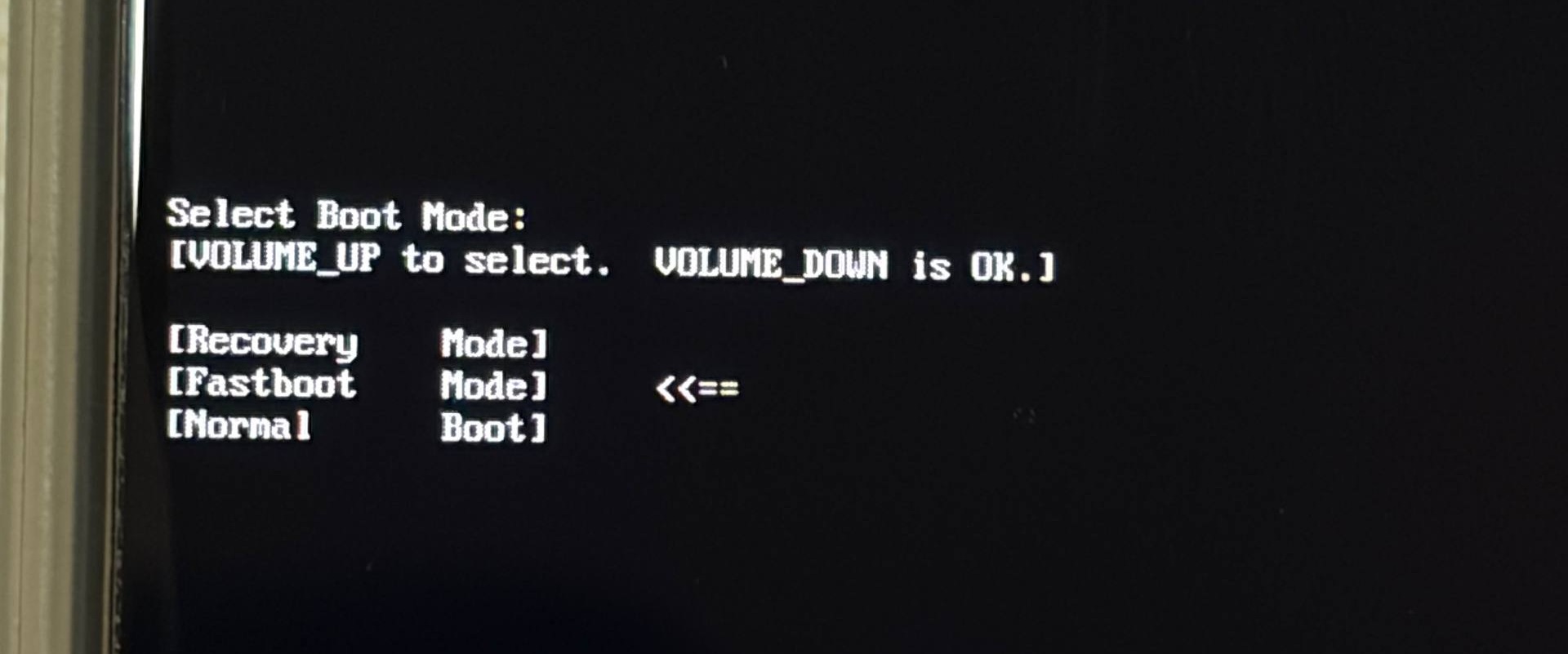
At some point it asks you to press and hold volume up so the device reboots into fastboot mode. Do that, then press Enter.

If it doesn’t reach fastboot, don’t panic: disconnect it, turn it off, and hold power and volume up until the boot menu appears, then select fastboot mode and reconnect.
Once the PC sees the device in fastboot, the script continues and attempts the unlock. Confirm on the phone by pressing volume up.
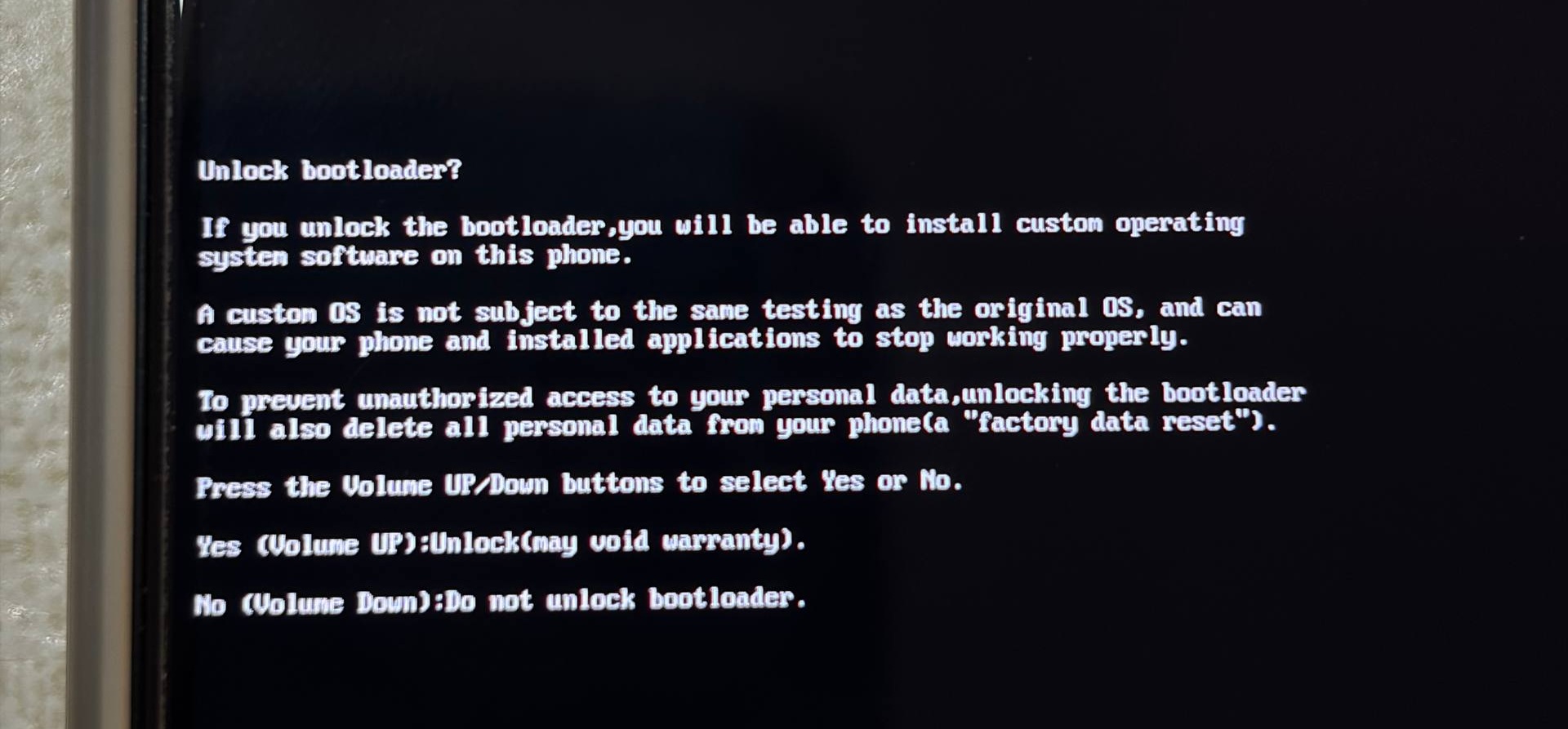
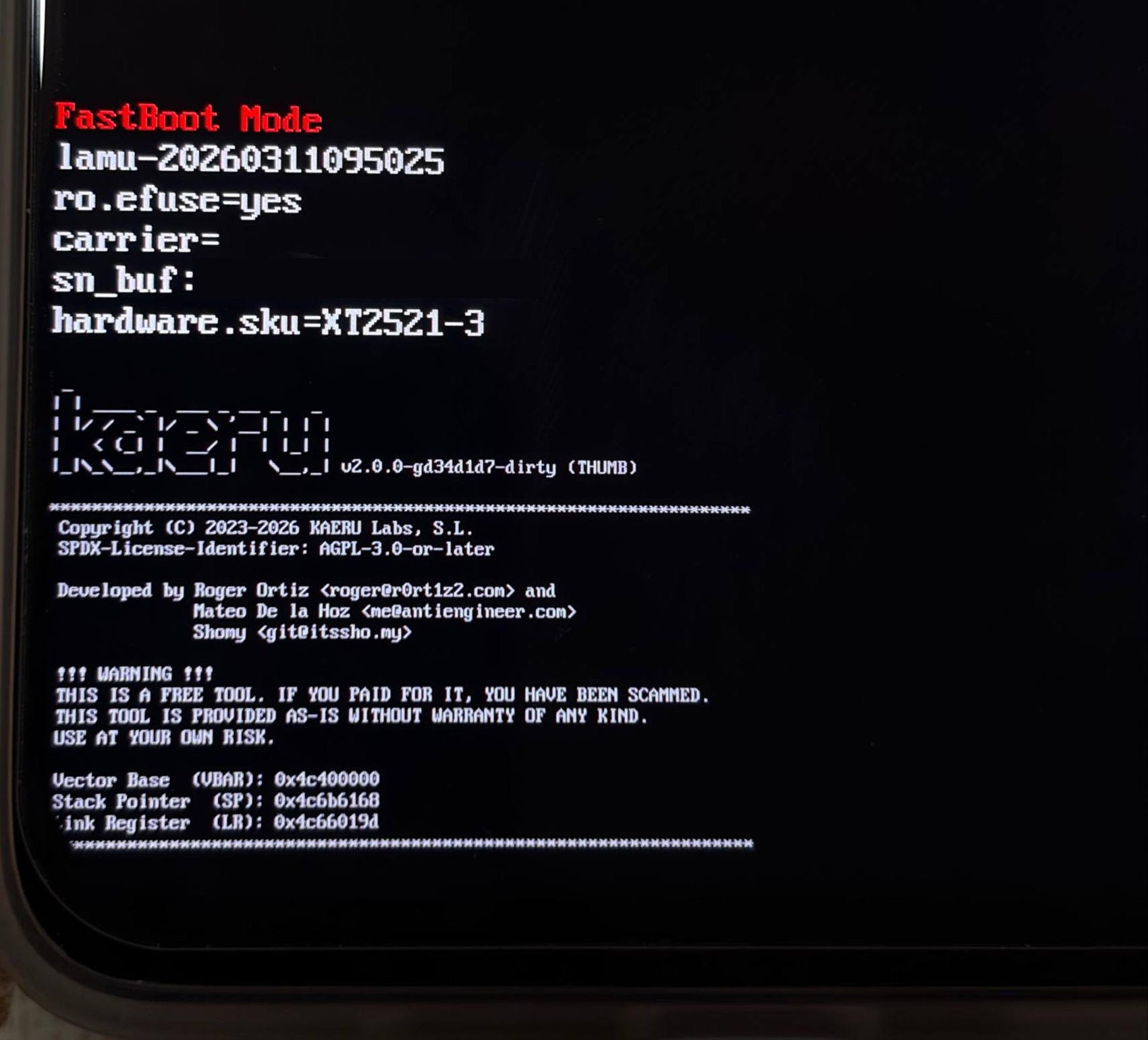
The phone shows “Unlock pass… return to fastboot in 3s” and goes back to fastboot. The script reboots it once more, and if all went well, you’ll see the kaeru logo. That’s it — your bootloader is unlocked!
Bonus: passing Play Integrity
kaeru can spoof the bootloader lock state while still letting you boot and flash unsigned images.
The device reports as locked to the TEE but keeps full fastboot and root access. That’s enough to pass Play Integrity on both the stock ROM and LineageOS.
It’s controlled entirely through fastboot:
fastboot oem bldr_spoof on # enablefastboot oem bldr_spoof off # disablefastboot oem bldr_spoof status # check the current stateIt’s off by default, persists across reboots, and needs a reboot to take effect.
CAUTIONA few important things before you enable this:
- It only works on the stock ROM or a LineageOS build made by me. GSIs and other ROMs will not boot while spoofing is enabled.
- A factory wipe is required when you toggle it, because of how the Android keystore ties itself to the lock state. The command will remind you of this.
- If you ever report a bug to LineageOS, turn this off first. It’s not part of official LineageOS and is off by default there, so leaving it enabled will just send maintainers chasing problems that don’t exist upstream.